ProjectWise Explorer Installation and Configuration
Welcome to the “Getting Started with ProjectWise Explorer for PGA ProjectWise Projects (Work Areas)” page. The purpose of this page is to provide guidance with downloading, installing and configuring the ProjectWise Explorer program. To begin, expand the desired Sections below and follow relevant instructions.
*Note: This page is not intended to provide in-depth guidance on using ProjectWise Explorer or other ProjectWise programs and services.
Downloading ProjectWise Explorer Installation Files
To download the required ProjectWise Explorer Installation File, please click on the applicable Download Link below.
- ProjectWise Explorer 2024 does not support “Legacy” Bentley V8i programs, such as MicroStation V8i (SELECTseries 10) and Power GEOPAK V8i (SELECTseries 10)
- ProjectWise Explorer 2023 does not support Autodesk 2025 programs, such as AutoCAD 2025 and Civil 3D 2025.
| Download Link | ProjectWise Explorer Version | Bentley ProjectWise Explorer Readme Link |
| Download ProjectWise Explorer 2023 | 23.06.03.12 | Bentley ProjectWise Explorer Readme |
| Download ProjectWise Explorer 2024 | 24.00.01.8001 | Bentley ProjectWise Explorer Readme |
For ProjectWise Explorer Requirements, click on the applicable Bentley ProjectWise Explorer Readme link above.
Installing ProjectWise Explorer
To install the ProjectWise Explorer program:
- Close all program sessions for the following programs:
Autodesk AutoCAD (versions 2019 – 2025)
Autodesk Civil 3D (versions 2019 – 2025)
Bluebeam Revu
Microsoft Excel
Microsoft Outlook
Microsoft PowerPoint
Microsoft Word
MicroStation (all versions)
OpenBridge Modeler (all versions)
OpenRoads Designer (all versions) - Using (Windows) File Explorer, browse to the Folder containing the downloaded ProjectWise Explorer Installation File.
- Right-click on the Setup_ProjectWise_Explorerx64_*.exe File and choose Properties.
- Check the Unblock checkbox near the lower-right section of the Properties window. Then, click OK.
*Note: If a version of the ProjectWise Explorer program is already installed, you must first uninstall it (and relevant Integration Modules) before proceeding with the next step. - Double-click on the Setup_ProjectWise_Explorerx64_*.exe File.
- Check the I accept the End User License Agreement checkbox. Then click Next.
- Check the Dgn Navigator Control Feature checkbox.
- Expand the ProjectWise Explorer and Tools Feature Tree.
- Scroll down to the Tools Feature Subtree.
- Check the Export-Import Tools Feature checkbox.
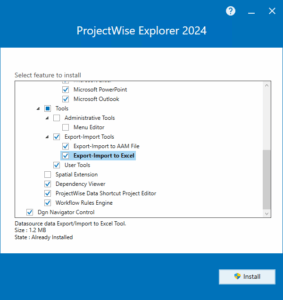
The Install ProjectWise Explorer window - Click Install.
- Restart your computer.
Next Steps: Proceed to the Configuring ProjectWise Explorer section below.
Configuring ProjectWise Explorer
To configure the ProjectWise Explorer program (to access PGA ProjectWise Datasources):
- ProjectWise Explorer program (click the Windows Start Menu and choose Bentley > ProjectWise Explorer Shortcut).
- ProjectWise Explorer program window, select Tools > Network Configuration Settings.
- General tab (of the ProjectWise Network Configuration Settings window), check the Prevent UDP for DNS and Listing checkbox.
- Click on the DNS Services tab and enter the following information into the respective fields:
Name: PGA
Hostname: patelgreene-pw.bentley.com
Port: 5800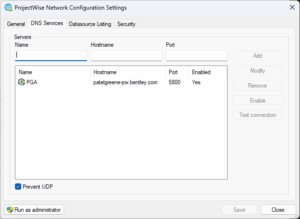
The DNS Services tab - Click Add.
- Check the Prevent UDP checkbox.
- Click on the Datasource Listing tab and enter the following information into the respective fields:
Name: PGA
Hostname: patelgreene-pw.bentley.com
Port: 5800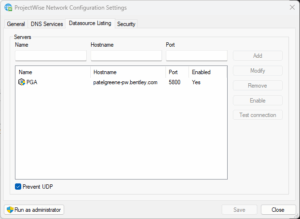
The Datasource Listing tab - Click Add.
- Check the Prevent UDP checkbox.
- Click Save. Then, click Close.
- Close the ProjectWise Explorer program.
- Launch/start the ProjectWise Explorer program again.
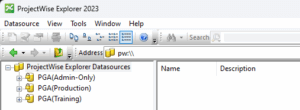
ProjectWise Explorer Datasources
Accessing Your Project (Work Area)
To access your Project (Work Area) via ProjectWise Explorer:
- Sign into the CONNECTION Client program, if you are not already signed in (this is required to access the PGA (Production) ProjectWise Datasource).
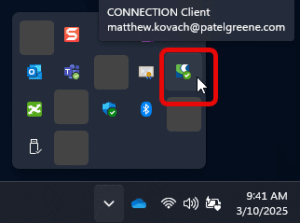
The CONNECTION Client icon via Windows Taskbar
4. Click Yes to accept the Create Working Directory notification.
*Note: You will be prompted (just once) the first time you sign into this Datasource from your computer.
About the Team